Keep the parts
worth keeping.
Save a whole conversation or choose the messages you want to keep. Export them as PDF, Word, Markdown, JSON, HTML or plain text. Save the files from your chat, too.
Launch providers
- ChatGPT
- Claude
- Gemini
- Grok
- Microsoft Copilot (personal)
- DeepSeek
- Perplexity
Interactive popup preview
Notes for the garden

Open a chat to export
Keep your AI conversations as files you can use.
See known issues and ways to report a problem.
Supported services
Links open in a new tab and carry nothing from your chat.
Salvia can export conversations from the services listed above.
Export or choose messages
Export: click a format to export the whole chat.
Several formats at once: click Export several formats, tick the ones you want, then click Export.
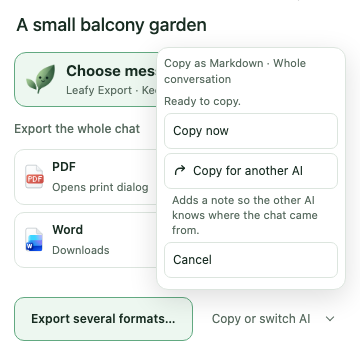
Leafy Export: choose individual messages before exporting.
Open Copy or switch AI to prepare the Markdown automatically. Use Copy now for plain Markdown or Copy for another AI to include a note about where the chat came from.
Choose Download conversation files to save available files from the conversation, including files you uploaded unless you turn that off. Images you uploaded in documents use the document image options.
Help with export options
PDF files are for viewing or printing; Word files are editable; Markdown is text with simple formatting marks.
Date & time adds the export date and time. Chat link includes a link to the source conversation.
Images in documents includes images in supported documents. Also show your uploaded images adds images from your prompts to documents when Images in documents is on. This does not download the original files.
Math in PDF, Word and HTML chooses Rendered (formatted equations) or LaTeX source (the text used to write equations).
Include the AI's working notes adds the AI's progress notes and folded working sections, as far as each service shows them, each labelled “Working note”. Off by default. Lines Salvia cannot classify are kept.
Show code language names adds headings such as C++ or Plain text to PDF and Word. Names come from the language marked on each code block; missing or unrecognised names use Plain text. Turning this off keeps the code and formatting unchanged. Markdown and JSON keep the recorded code language.
Colour code blocks adds syntax colours to supported code in PDF and Word exports. On by default.
PDF image size offers Full width or Compact prompt images. Assistant images stay full width; other formats keep their own layout.
PDF colours sets the colour of role labels, your message boxes and quote bars in PDF. Salvia green is the default; Monochrome uses greys. Links, code, maths and images are unchanged, and Word and other formats are not affected.
Download conversation files downloads available files from the conversation. Add your uploads to the download includes your uploaded images and documents in that files download. Turn it off to keep only files created by the chatbot. It does not control images inside documents.
Save export formats in one ZIP saves the chosen export formats in a ZIP, one download containing several files. If conversation files are selected, their ZIP is included too. PDF opens separately in Chrome Print.
Compatibility mode reads the chat from the page (Claude and Microsoft Copilot). It does not turn on file downloads or skip sign-in or verification checks.
Conversation files and document images
Download conversation files downloads available files from the conversation, including files you uploaded unless you turn that off. Files that cannot be retrieved are skipped and listed in the file report; if none can be retrieved, no files ZIP is created and your conversation export still completes.
Document images includes images in supported documents. This does not replace the files download.
Compatibility mode reads the chat from the page (Claude and Microsoft Copilot). It does not turn on file downloads.
Retrieving files may load older messages and take over a minute.
About compatibility mode
Reads the chat from the page instead of asking the service for its data. Available for Claude and Microsoft Copilot. It may scroll to load older messages and take longer. Try it when a normal export fails but you can see the chat. Finish any sign-in or verification check first; this mode cannot skip it. Images and conversation files may still need network access. ChatGPT uses Automatic mode.
Conversation completeness
Salvia saves what it can read when you export. Some services give Salvia no way to check that it saw every message. When Salvia notices a gap it warns you; no warning doesn't guarantee the file is complete.
Your conversation and privacy
Export and Choose messages read the current conversation. Opening Copy or switch AI in the popup reads it too. Export can also, if selected, retrieve downloadable files from the conversation. It may use your existing sign-in to that site solely for retrieval. It processes the content locally and does not send it to us.
Private by design. Salvia builds ordinary file exports in your browser. Your conversations stay off Salvia’s servers.
Read the Privacy NoticeA file you can use.
Keep formatting, links, code and conversation structure where the format supports them. Use PDF for reading, Word for editing or Markdown for a portable copy.
Copy-and-paste has had a good run.*
*Copy as Markdown is still there for those of us that enjoy the sound of 90s modem handshakes and ZX Spectrum loading screens.
Pick up where
you left off.
Switch AI without starting over.
Open Copy or switch AI, then choose Copy for another AI. Salvia prepares the Markdown automatically and adds a short note about where the chat came from. Paste it into your new chat.
Copy the whole conversation or just selected messages. Attached files stay behind.
Save to Notion
Keep a conversation alongside your notes in your own Notion workspace.
Try the Notion preview- Choose the messages
Save the whole chat from the popup, or pick individual messages in Leafy Export.
- Choose the destination
Connect Notion and pick a page you’ve shared with Salvia. The conversation becomes a page beneath it.
Supported headings, lists, code, equations and images become Notion blocks. Salvia reports omissions it can identify.
Keep the files, too
Save your course or research chat alongside one ZIP of the files Salvia can retrieve.
- Courses and curricula
- Keep lesson notes, worksheets, code and data files from a course you built with AI. Use the transcript to revisit the examples when you teach or study.
- Scientific research
- Keep the papers you uploaded with analysis scripts, figures and results. Save the chat that explains how you got there so you can retrace the steps and check the results later.
- Download conversation files
- Turn this on to save available files and images. Leave Add your uploads to the download on to include uploads Salvia can retrieve. File and image coverage varies by chat service. Check what the files ZIP includes.
- One ZIP for several formats
- When exporting several formats, turn on Save export formats in one ZIP to put your downloadable transcripts and the files ZIP in one download. PDF opens separately in Chrome’s print dialog.
Chrome opens a save dialog for the ZIP. The files stay on your device. After export, View file details explains why known files could not be retrieved.
Export options
Choose what goes into your exports and how documents look. Open a group to explore its settings.
Conversation details
- Date & time
- Include date and time information in the export.
- Chatbot name
- Identify the service the conversation came from.
- Chat link
- Include the original conversation link when you want a way back to the chat.
Document content and appearance
- Images in documents
- Include available conversation images in the document.
- Also show your uploaded images
- Show images from your prompts when document images are on.
- PDF image size
- Choose Full width or Compact for how PDF displays your uploaded image previews.
- Show code language names
- Add labels such as Python or Plain text to code blocks.
- Colour code blocks
- Use syntax colours for supported languages.
- Math in PDF, Word and HTML
- Use formatted equations or include their LaTeX source.
- Include the AI’s working notes
- Keep any working notes the provider makes available. Each is labelled Working note.
- Include pasted text
- Include long text that Claude turns into an attachment when you paste it into a prompt. Turn this off to show how many lines were omitted.
- PDF colours
- Choose Salvia green or Monochrome.
Files and uploads
- Download conversation files
- Collect available downloadable files in a ZIP.
- Add your uploads to the download
- Include the original files you uploaded when conversation-file downloads are on.
Capture compatibility
- Compatibility mode
- In Claude and Microsoft Copilot, read the chat from the page if a normal export fails. This can scroll to load older messages and take longer.
About Salvia.
Choose what to keep, then save it in the format that suits you. Ordinary file exports are prepared on your device.
Private by design. Files are built in your browser, so ordinary exports send nothing to Salvia's servers and we never see your conversations. Save to Notion goes straight from your browser to your own Notion workspace.
You decide which sites Salvia can reach. Salvia reads a chat from the provider you are already signed in to. Where a provider keeps images on a separate image host, Salvia asks for access to that host only when an export needs it, and you can take the access away again in Chrome.
Nothing watching you. The extension has no analytics or tracking, shows no adverts, sells no data and never uses your chats to train anything.
Supports ChatGPT, Claude, Gemini, Grok, consumer Microsoft Copilot, DeepSeek and Perplexity. Features vary by provider. Read the help page.
Privacy
Salvia processes exports locally in your browser.
Salvia is operated by Podtree Ltd, a private limited company registered in Scotland (company number SC517477), registered office 26 Kanachrine Place, Morefield, Ullapool, Scotland, IV26 2TX. Contact us for support, security or privacy at simplechatexporter@gmail.com.
At a glance
Salvia is not aimed at children under 16. Pro must be ordered by an adult.
File exports are converted in your browser. Ordinary exports do not send your conversations to Salvia's servers.
Save to Notion sends the selected conversation content directly from your browser to your Notion workspace.
Buying or restoring Pro involves an email address, installation and licence records, and Stripe transaction records. There is no advertising, cross-site tracking, developer analytics, sale of personal data or use of conversations for AI training.
Ordinary local file exports
The extension accesses the current supported AI chat conversation only when you ask it to: when you choose messages to review before exporting, or when you start an export. Conversation content is not sent to the developer, analytics services, advertising services, or any extension server.
For ordinary local file exports, conversation content is used only to show the messages you review and to create the export files you request. It is not used for advertising, profiling, analytics, model training, resale, or unrelated purposes.
If you explicitly select Download conversation files, the extension may scan and load the current conversation, retrieve available files from the conversation, including files you uploaded unless you turn off Add your uploads to the download, from the same authenticated AI chat service, and package them into a local ZIP. Prompt images in documents use the separate document image options. This can take longer, and files that the service no longer makes available may be reported but cannot be included.
You can choose to preview and save a failure report locally; it contains diagnostic metadata only, and Salvia does not upload it.
AI-provider retrieval
Perplexity uses bounded page capture and first-prompt preparation, not a general server-history reader. Safely owned inline PNG/JPEG bytes and remote answer-image references are distinct: remote images can retain unavailable-image labels without a new fetch. Original file bytes may be unavailable; Files ZIP must report that honestly and can refuse when none are available. This does not promise all first-turn/history layouts, remote embedded-image recovery or automatic assistant-created file downloads.
Claude Automatic may retrieve same-origin conversation data with the active page's existing sign-in; Compatibility reads the page. Gemini and Grok prepare supported page history within bounded limits. Consumer Microsoft Copilot can retrieve same-source HTML or qualified history before permitted page capture; history completeness may remain unverified. These reads start only after Export or Choose messages. Dedicated artifact bodies, interactive widgets and guaranteed original-file recovery are not included. Unsupported layouts can stop capture, and unavailable images or files keep an explicit label. No additional persistent provider site access is granted.
DeepSeek reads the open conversation from the page and stops if Salvia cannot verify the full message sequence. For PDF or Word with images enabled, Salvia can request eligible images from your prompts directly from files.deepseeksvc.com while the chat is open. DeepSeek receives the image address and ordinary connection metadata. These requests omit cookies and referrers and refuse redirects. The original files for other DeepSeek attachments are unavailable.
For supported structured API extraction, Salvia can use the chat site's existing authenticated session from the active page to retrieve the requested conversation or files. Authentication credentials and bearer tokens are not stored, downloaded, logged, or sent to the developer's servers.
For ChatGPT this includes its session response, access token and temporary user and account identifiers, used to detect an account switch. Those identifiers are held in memory only, for up to 15 minutes, and are not sent to Salvia.
Optional image site access
Salvia declares optional access to the hosts listed below. Chrome grants it only when you allow it. When a Word export with document images or an eligible conversation files ZIP needs access, Salvia shows which sites it needs before Chrome asks. The generic image dialog shows how many images need access for this export. The signed-in Gemini dialog lists all requested hosts, including any ordinary image hosts in the same request, without counts. You can choose Not now or remove grants in Settings → Manage image access or Chrome's extension settings. For ordinary image downloads, your browser sends a GET request for each eligible image from the chat you're exporting. The site receives the image address and ordinary connection metadata (IP address, user agent, time). These requests omit cookies, sign-in, referrers and chat text, carry no request body and refuse redirects. Downloaded images go into your local export. These requests send nothing to Salvia servers. Podtree does not control those sites. Their own privacy policies apply. The export reports images it could not include.
Optional Gemini file and image access. When you request a conversation files ZIP, Salvia can send a separate authenticated POST from the open chat to gemini.google.com to look up generated-file download details. This can happen before Chrome asks for optional download-host access. The session values used for this lookup are temporary and are never saved or included in exports. For the separate download GETs, Salvia shows which of contribution.usercontent.google.com, lh3.googleusercontent.com and lh3.google.com it needs before Chrome asks for permission. Chrome may attach your existing Google cookies to these export-only downloads of files and images generated in the current Gemini chat. Salvia's Gemini download code never reads or stores those cookies. Google may redirect the downloads. Salvia validates the final HTTPS host after redirects before accepting the download. Salvia reports items with recognized sign-in responses as unavailable without reading or saving those response bodies. Files and images stay on your device in the conversation files ZIP, and supported images can be embedded in Word. The Gemini metadata and download requests send nothing to Salvia servers. This signed-in download access is not used for your uploads. PDF uses the images already on the page.
| Origin | Provider | Operator | Purpose |
|---|---|---|---|
| https://images.openai.com | ChatGPT | OpenAI | Generated images and product thumbnails |
| https://encrypted-tbn0.gstatic.com | Gemini | Public search and licensed-image thumbnails | |
| https://encrypted-tbn1.gstatic.com | Gemini | Public search and licensed-image thumbnails | |
| https://encrypted-tbn2.gstatic.com | Gemini | Public search and licensed-image thumbnails | |
| https://encrypted-tbn3.gstatic.com | Gemini | Public search and licensed-image thumbnails | |
| https://contribution.usercontent.google.com | Gemini | Generated conversation files using your existing Google sign-in | |
| https://lh3.googleusercontent.com | Gemini | Generated images using your existing Google sign-in | |
| https://lh3.google.com | Gemini | Generated-image download redirects | |
| https://services.bingapis.com | Microsoft Copilot | Microsoft | Image proxy |
| https://ts1.mm.bing.net | Microsoft Copilot | Microsoft | Answer image thumbnails |
| https://ts2.mm.bing.net | Microsoft Copilot | Microsoft | Answer image thumbnails |
| https://ts3.mm.bing.net | Microsoft Copilot | Microsoft | Answer image thumbnails |
| https://ts4.mm.bing.net | Microsoft Copilot | Microsoft | Answer image thumbnails |
| https://assets.grok.com | Grok | xAI | Generated images |
| https://imagedelivery.net | Perplexity | Cloudflare for Perplexity | Answer image thumbnails |
| https://edge.perplexity.ai | Perplexity | Perplexity | Answer image proxy |
| https://ppl-ai-file-upload.s3.amazonaws.com | Perplexity | Amazon Web Services for Perplexity | Uploaded image previews |
| https://img.youtube.com | Perplexity | Google / YouTube | Video-result thumbnails shown in the answer |
Chrome Deny is remembered per provider; Not now applies only to that export. Settings → Ask again for image access clears the decline. PDF is unaffected.
Images and files may need network requests to the AI service and resource hosts, including OpenAI content hosts. Exported image references may also load when a document is opened. Local processing does not mean offline operation.
Save to Notion
Save to Notion is optional. Connect requests optional access to auth.salviachatexporter.com and api.notion.com and opens Notion authorization through Chrome identity. The authorization broker handles OAuth state, code, proof-key verifier and token exchange, refresh and revocation; it does not receive chat content. Save sends the conversation title, role headings, the message text you select and public citation links, plus the chat link when Chat link is on, to your chosen Notion workspace. PNG and JPEG images that are part of the messages you select (each up to your Notion workspace’s file-size limit, 5 MB on Free plans, and no more than 20 MB) are uploaded to your own Notion workspace through Notion’s file upload API when you click Save: your browser first reads them from the AI service with the page’s existing sign-in, then sends the image bytes, with a generated name such as image-1.png, directly to api.notion.com. For images, the AI service’s image addresses, image file names and alt text are never sent to Notion, and nothing is sent to Salvia. Other images, and any image that could not be read or uploaded, become numbered labels such as “Image 2 not uploaded”; other files become labels with their file name and type. The save result says how many images were uploaded and how many were saved as labels. If you cancel a save before its page is created, Salvia reports “No Notion page was created.” Any image already uploaded is not attached to a page, and Notion removes it after about an hour; the same applies when a save fails before its page is created. Choosing a destination reads the titles of Notion pages that you have shared with the connection.
The broker stores a SHA-256 hash of the one-time OAuth state, a hash of the proof-key verifier, the extension origin and an expiry set 10 minutes after authorisation starts. To prevent reuse, the broker stores a SHA-256 hash of the Notion authorisation code with a flag for repeat attempts and an expiry set 24 hours after the first claim. The broker removes the state record when it is used and prunes expired records in batches.
Salvia keeps your Notion connection on this device so you do not have to connect again after a browser restart. The access token is held only in memory for the browser session (Notion documents no expiry for it, so it is treated as a long-lived credential); the refresh token is stored in the extension's local storage in a scrambled form that only Salvia's own extension pages can use, together with the date you connected and last used it. The connection is never synced to other devices. A connection unused for 90 days is removed and you are asked to connect again. Disconnect removes the stored tokens from this device and asks Notion to revoke the access token; you can also remove Salvia at any time under Notion Settings → Connections. Pages already saved stay in Notion, and save records stay in local extension storage as described below. To show which workspace is connected, Salvia also reads the connected Notion workspace name from Notion and keeps it with those dates in local extension storage; Notion's reply can also include the connection owner's name and email, which Salvia discards without storing. Disconnect removes the workspace name.
Salvia remembers up to 50 Notion page titles and IDs from destination search results, plus your last chosen “Save under” page, locally on this device; page content is never stored. When the page list loads, that last page is preselected only if your current Notion connection lists it, and Save still checks it. Disconnect and “Clear Notion data on this device” remove this list of remembered destination choices and the optional site access granted on Connect; cleanup failures are reported. Clearing does not revoke remote access or delete saved Notion pages. If you turn on the Notion option “Add date and time to page title” (off by default), saved Notion page titles end with the local date and time of the save (for example “— 2026-10-19 02:45”); that on/off choice is stored locally.
To avoid duplicate pages, Salvia keeps local export receipts, including after you disconnect or forget Notion: a current attempt and up to eight retained earlier attempts. These contain page IDs, block counts, status and attempt/binding metadata, including content digests, but no chat content. Notion saves count toward the same three-per-day Free allowance as PDF and Word exports (reset at 00:00 UTC). If Salvia knows a save failed before anything was written to Notion, it does not use a free export. Pro removes the daily limit.
Salvia Pro, email and payment records
To buy or restore Pro you give an email address. We use it to send a one-time confirmation link and to match your licence. Purchase links work for 30 minutes and restore links for 15 minutes. Our database stores keyed email lookup hashes, not a plain list of email addresses. The plain address and link pass through Salvia's email delivery queue, which is used only to send that email.
Licensing uses local entitlement and Free allowance records, and an installation signing identity and purchase and recovery records in IndexedDB. The private signing key stays in your browser. Choosing Upgrade or Restore purchase contacts Salvia's licence service at api.salviachatexporter.com to register an installation, verify a purchase, renew Pro or restore access, and allows later account checks. Before that choice, opening Salvia or exporting does not contact the licence service. Salvia remembers only an on/off choice on this device, not in Chrome Sync. You can turn off later checks with Stop account contact in More recovery options; this does not cancel Pro. Choosing Upgrade or Restore purchase allows contact again. These requests carry installation, public-key and purchase or recovery details, never conversation content. There is no Salvia password.
Pro is sold through Stripe Managed Payments: Sold Through Link, LLC, a Stripe affiliate, is the merchant of record, collects payment and billing details on Stripe's checkout page, and handles tax and receipts, which show the purchase as "Sold through Onelink". Card numbers never reach the extension or Salvia's licence service. Salvia's licence records keep Stripe customer, checkout and subscription references, subscription status and period end, and payment status and amount.
Salvia's licence service processes request IP addresses to apply rate limits and turns network details into a keyed hash. The Notion authorization broker also processes request IP addresses to apply rate limits and uses a SHA-256 hash of the address. Raw IP addresses are not written to our business database.
On-device storage
Local extension storage keeps export and appearance preferences. It also remembers whether you have seen the welcome screen and whether you asked not to see the PDF print notice again. Review reminders are opt-in. After your first completed export, Salvia asks once whether it may occasionally remind you to leave a review; nothing about reviews is stored before you answer. If you choose No thanks, only that answer is stored so you are not asked again. If you choose Yes, Salvia keeps a count of confirmed completed export jobs, reminder timestamps, and your Store-link choice. Choosing Don't ask again, or Turn off under About, deletes that count and those timestamps and keeps only your refusal; Ask me again removes the refusal so the question can be asked after a later completed export. The permanent “Rate or review Salvia on the Chrome Web Store” link stores nothing. These records contain no conversation content or downloadable chat files, and no review telemetry is sent. If you use Support or Report a problem, the Support page address carries only Salvia's version and release channel, your browser's major version and the chat service; nothing from your chat.
The Free daily allowance record holds the UTC day, the number of PDF, Word, HTML and Notion jobs used and any job still in progress.
After a failed export, Report a problem also adds a short error code and export stage; nothing from your chat.
Removing Salvia clears its extension data in that Chrome profile. It does not cancel Pro, delete exported files, or clear browser history or backups. It does not delete saved Notion pages. Removing Salvia does not revoke the Notion connection; remove it under Notion Settings → Connections.
Salvia uses Chrome's offscreen permission to convert Markdown in a short-lived hidden page. This processing stays local and adds no website access.
Recipients
Stripe and Sold Through Link, LLC (payments; Sold Through Link, LLC is the merchant of record under Stripe Managed Payments), Cloudflare (hosting for Salvia's licence service and Notion authorization broker, database and email queue) and Resend (delivery of purchase and restore emails) process the data needed for those services. Notion receives what you save to your workspace. The AI service you export from receives the requests needed to supply your conversation. We do not send conversation-export content to Salvia's Cloudflare services, Resend or Stripe. If you report a problem or send feedback with the forms on Salvia's website Support page, Tally receives what you enter there. The Support and Report a problem links from Salvia add only Salvia's version and release channel, your browser's major version and the chat service; nothing from your conversation. After a failed export, Report a problem also adds a short error code and export stage; nothing from your chat.
Chrome Web Store Limited Use
Use of information received by the extension complies with the Chrome Web Store User Data Policy, including its Limited Use requirements. Conversation content is used only to review messages and create the files you request, and, when you choose Save to Notion, to create that Notion page. Licence, email and transaction data is used only to provide, administer, restore and secure Pro and to meet legal duties. We do not sell this information or use it for advertising, unrelated analytics, profiling, AI training, creditworthiness or lending. Ordinary exports do not send conversations to our servers or give our staff access to them.
Your privacy rights
Under UK or EU data protection law, where it applies, you can ask for access to your personal data, correction, erasure, restriction and portability, and you can object to processing based on legitimate interests. Email simplechatexporter@gmail.com, saying which right you want to use. Write from your purchase email where you can, and never send a link, token or card details. You can complain to the UK Information Commissioner's Office (ICO) or to the data protection authority where you live or work.